
1. Modbus support
The following communication types can be used to connect the inverter to the FlexiObox:
(option 1 - preferred) Modbus RTU: RS485
Connect to the inverter using the Black Dongle [LMGS] combined with Solax adapter [LMA2].
You can now connect a SFTP-cable between the LMA2 adapter and the Solax-inverter.
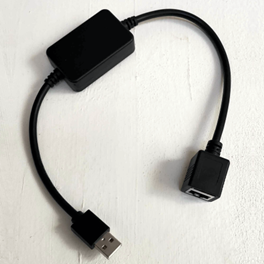
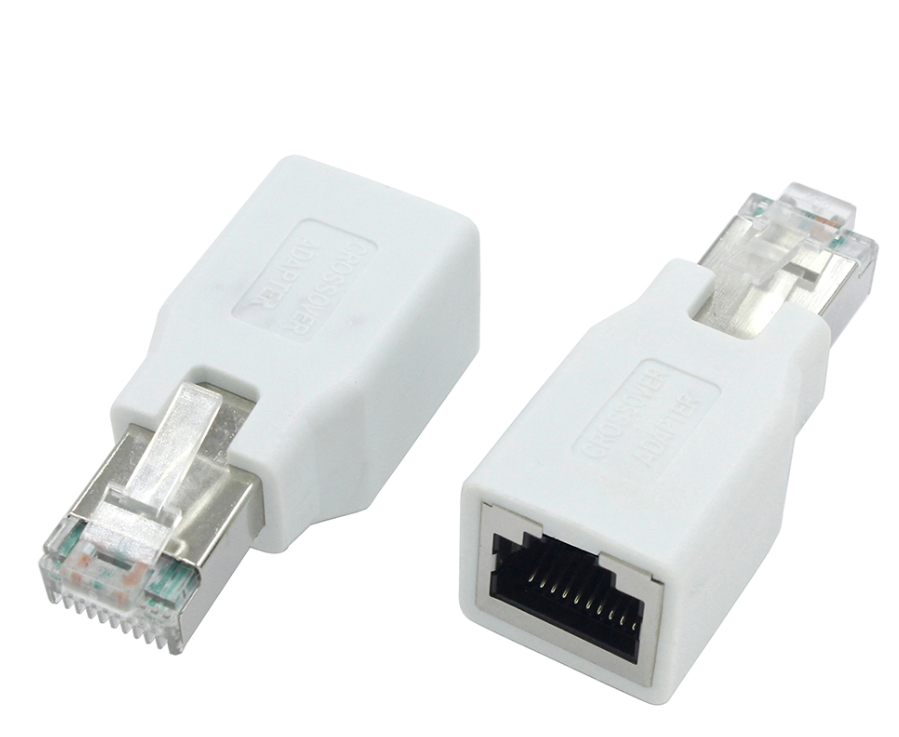
Related: Where to order this product.
(option 2) Modbus TCP: Ethernet
Connect to the inverter using the local Ethernet or Wi-Fi network.
For this type of connection follow the Modbus TCP setup (chapter 2)
2. Configuring and connecting the inverter
(option 1 - preferred) Modbus RTU: RS485
The SolaX X1 Hybrid G4 inverter supports Modbus RTU connections using the inverter RJ45 COM Port.
Modbus connection is by default disabled and needs to be enabled on the inverter by accessing the user interface
-
Power off the inverter
-
Plug the Ethernet cable RJ45 connector in the inverter’s COM port
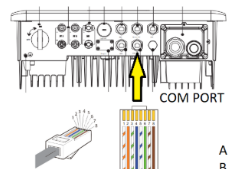
-
Plug the RJ45 connector into the SolaX adapter [LMA2] (female connector) and plug the SolaX adapter [LMA2] (male connector) into the Black Dongle [LMGS] (female connector).
Connect the other end of the cable (USB) to the FlexiObox.
You can choose which 4 USB ports to use (2x USB 2.0 black and 2x USB 3.0 blue). -
Plug the USB dongle into the FlexiObox.
You can choose which 4 USB ports to use (2x USB 2.0 black and 2x USB 3.0 blue). -
Power on the inverter
-
Enable Modbus by using the inverter display menu to set the COM port function
Browse to “Com port select” item:
Settings >> Manufacturing settings >> Com port select
and select Modbus
-
The FlexiObox will detect the inverter after the connection is established
(option 2) Modbus TCP: Ethernet
-
Connect the Pocket Wi-Fi or Pocket LAN dongle to the inverter
-
Follow the manufacturer guide to connect the dongle to the same network subnet from the FlexiObox
-
Once connected, no additional configuration is necessary to enable Modbus and the inverter will be automatically detected by FlexiO