
Check if P1-port is open
First you’ll have to check if the P1-port is open. If this is not the case you can open the P1-port following this procedure:
Downloading the Homewizard app
Homewizard Energy app - Google Play
Homewizard Energy app - Apple Store
For the installation of the P1 dongle and App, we refer to the instruction video from Home Wizard
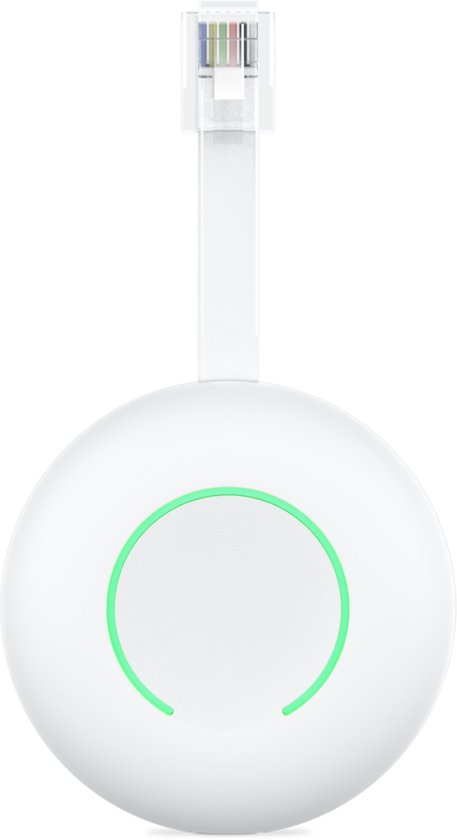
Add the Homewizard P1-dongle to the Homewizard app
If you're you using the HomeWizard app for the first time and haven't created an account during order placement? Then first create a HomeWizard account. Follow the steps in the app for this.
-
Press Add a device > P1 Meter > Next. Make sure the status ring of your P1 Meter is still flashing blue (pairing mode).
-
Select your Wi-Fi network from the list and enter your Wi-Fi password. Press Continue. The P1 Meter will now connect to your Wi-Fi network.
-
When the P1 Meter is connected to Wi-Fi, the status ring turns green. You can now continue to the main screen of the app.
Activating the API for connection with FlexiO
Once the Home Wizard is activated and you receive values in the App, you can now also link these to FlexiO.
You do this by activating the API of your dongle.
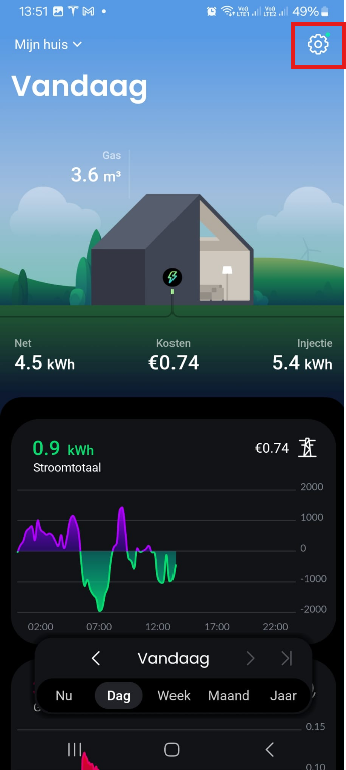
Step 1:
Click on “settings” (gear icon at the top right)
Step 2:
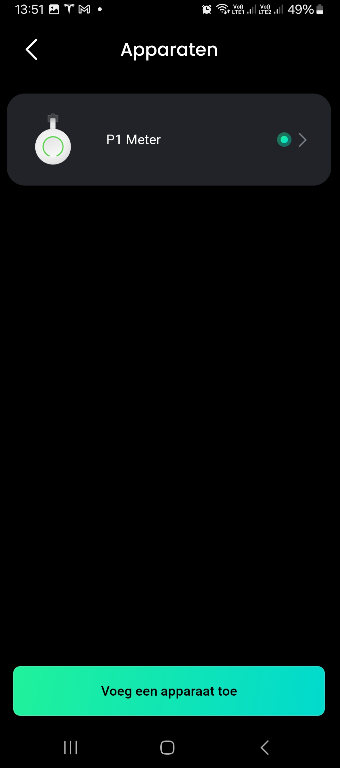
Select the P1 meter in ‘Apparaten’:
Step 3:
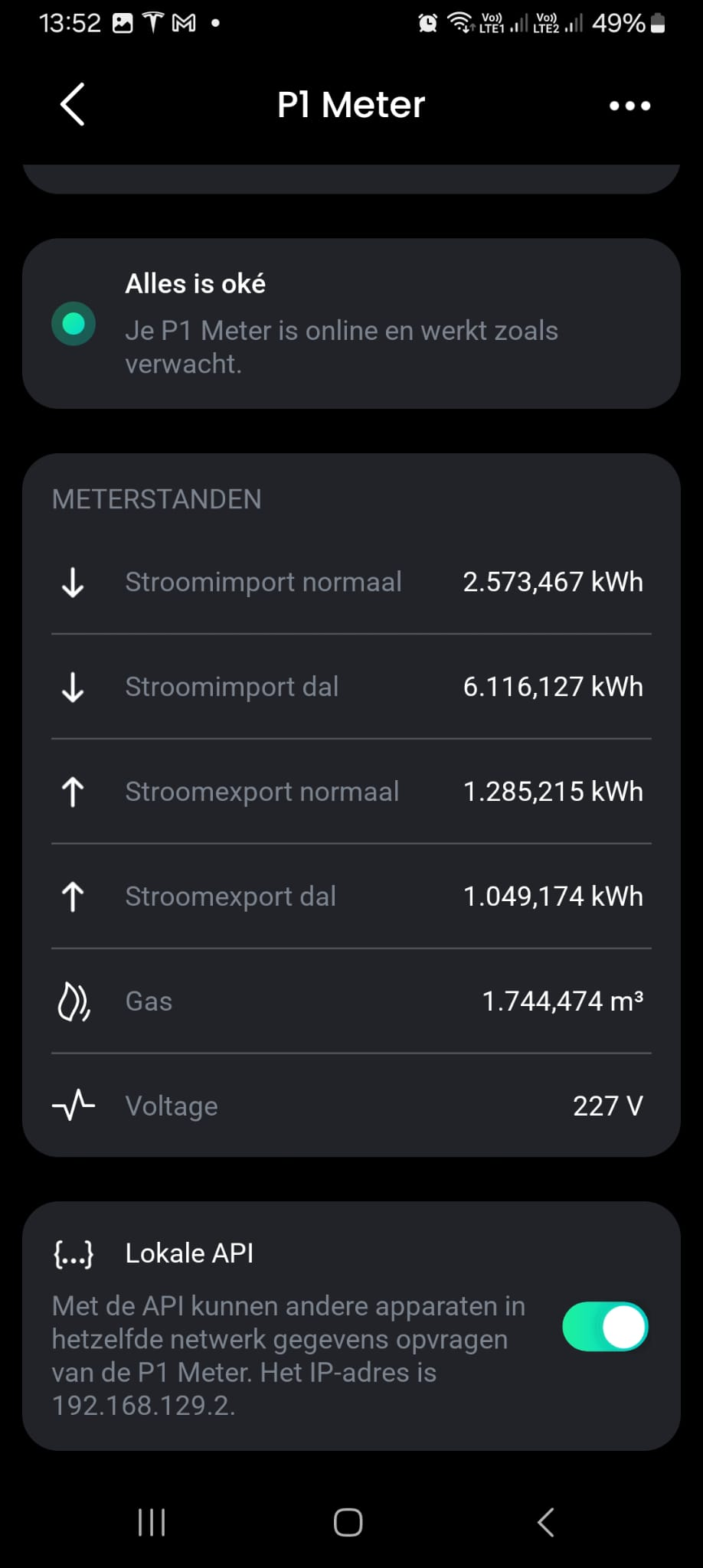
You now see the details of this meter.
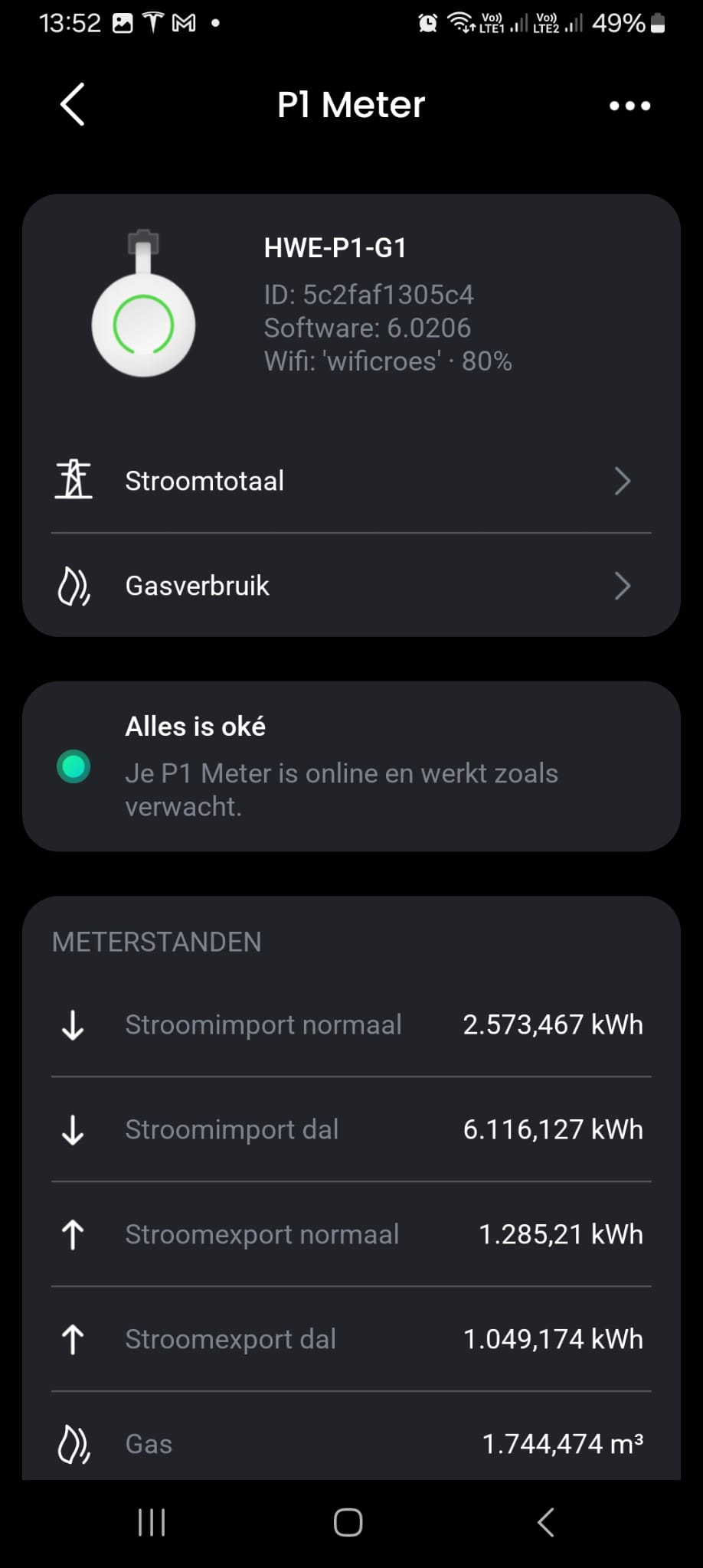
Scroll all the way down and activate the local API
Your Homewizard P1-dongle is now ready to read the P1-port and send the P1-data, true the wifi-network, to the FlexiObox.