In our continuous efforts to improve, we’ve taken a next step in our migration from the partner.lifepowr.io-platform to a new monitoring platform myportal.lifepowr.io
Both platforms will continue working side by side during this transition phase, awaiting all functionalities to be migrated to the new environment.
In a previous step we’ve migrated the IO Diagnostics to the new environment, called the Device Info Page, where we’re able to show more then only the ‘essential’ diagnostics. User registration and activation dates, which were added recently, are some examples of the steps forward.
By adding a QR code, everyone is able to scan this code and have a view on the status of the device. When an error occurs, a message is shown with a link to the documentation. This way we can expand the diagnostics to messages about subscription, gridbalancing, actions a customer can take, etc.
The myportal.lifepowr.io is a next step in improving the monitoring of devices.
A LIFEPOWR installer login is required for accessing your Fleet or configuring a FlexiObox.
The FlexiO installer website allows you to monitor and manage all your FlexiO installations.
No installer login yet? Read this section how to obtain.
1. Sites overview
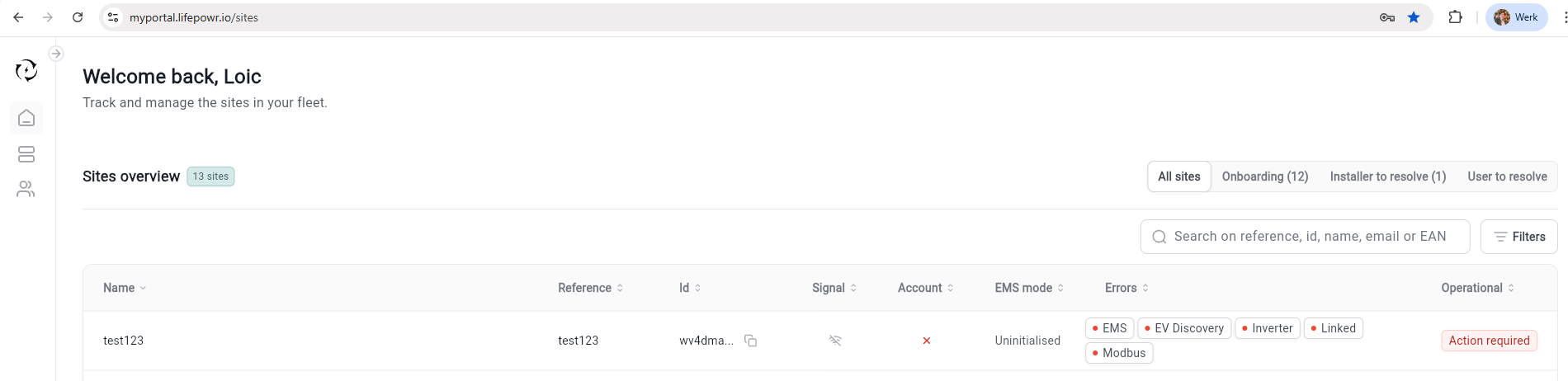
With this new sites overview we move to a new environment and we’ve covered, for the moment, the same functionalities as the old partner-portal ‘Devices’ page, with a few extra possibilities.
1.1 Different fields
-
Name: Defined name by installer, can be changed by the user in the mobile app.
-
Reference: Unique field for the installer to give a name, project number, site ID,…
-
ID: first 6 letters/digits of the thing ID of the device. You can click on the ‘copy’ sign to copy the full thing ID. Easy to use when communicating with FlexiO-employees.
-
Signal: Is the device online or offline
-
Account: What is the status of the user registration
|
Account symbol |
Meaning |
Call to action |
|---|---|---|

|
User linked and registered |
No action needed |

|
User linked but not yet registered |
User needs to register in the mobile app |

|
User not linked |
Installer needs to link an user e-mail address |
-
EMS Mode: More info about the different EMS-modes you can find here.
-
Errors: Problems that occur before, during or after installation that need to be solved to guarantee a normal working device. All errors are defined here.
1.2 Division in different groups
We see in the top right corner a sub-division of the sites in the sites overview:

-
Onboarding: Sites that have the EMS mode ‘Uninitialized’. These sites are still in configuration and are not yet activated. Activated is when the device is signed off in the Device Info Page. When the user has finished his registration, the EMS mode goes to ‘Normal’ mode and the device is officialy onboarded.
-
Installer to resolve: Sites that need action from the installer to solve the errors at hand. These errors are linked to the correct installation of the device and end-responsibility will always lie at the installer side.
-
User to resolve: Sites that need action from the user. For example the user has to register by:
-
Downloading the MyFlexiO app
-
Creating an account with the linked e-mail address
-
Accepting the Terms of Use
-
Entering IBAN and EAN for subscription and gridbalancing purposes.
-
2. Search Bar
The search bar has been much improved and is an easy way to find the device you’re looking for.
It is possible to search on different fields, such as:
-
Reference
-
ID
-
Name
-
e-mail
-
EAN
3. Filters
There are substantialy more filters to use to have a clearer view on the different aspects of the fleet.
3.1 Online/offline
By clicking on the Signal dropdown, you can filter on Online or Oflline devices. The filter is remembered in the site overview.
3.2 Operational
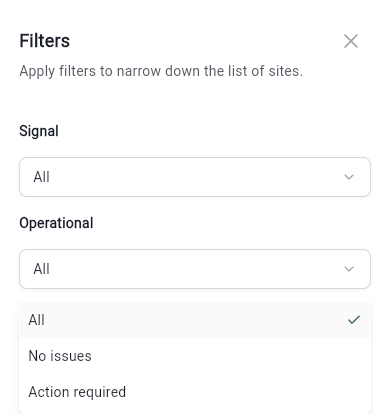
In the operational dropdown you can filter the devices where ‘no issues’ are present or where ‘action is required’
3.3 EMS Modes
More info about the different EMS-modes you can find here.
When a device is claimed and updated correctly it will stay on ‘Uninitialized’.
When a installation is finished, the installer can do a sign off when all essential diagnostics are green. Lifepowr will do a check to see if the end-user had registered correctly.
When both signoff and registration is completed, the EMS will turn automatically to ‘Normal’. At this point the installer can change to the different troubleshooting modes.
Other EMS modes are linked to devices that didn’t get to the uninitialized mode and are most probably offline.
3.4 Gridbalancing
rPOWR is gridbalancing by acting on the Frequency Capacity Reserve (FCR-market).
ePOWR is gridbalancing, together with an energysupplier, helping in his imbalance-position.
|
Grid Balancing |
Meaning |
|---|---|
|
rPOWR - Not Participating |
Not (yet) able to contribute to rPOWR and not on a ePOWR Flex tarrif |
|
rPOWR - Active |
Actively participating to rPOWR |
|
rPOWR - Inactive |
Part of a rPOWR Virtual Power Plant (VPP) but not actively participating due to a technical error. |
|
ePOWR - Not Participating |
Not part of a ePOWR VPP |
|
ePOWR - Active |
Actively participating to a ePOWR VPP |
|
ePOWR - Inactive |
Part of a ePOWR VPP but not (yet) actively participating. User can be awaiting his startdate or is inactive due to an error. |
3.5 Sub-fleets
If you have multiple sub-fleets, you can filter here.
3.6 Failed Diagnostics
Every error is shown here and you can filter on one or more errors. For the moment only the errors from the IO Diagnostics are shown. The essential diagnostics are the responsibility of the installer. The other errors are linked to the essential diagnostics and are monitored by Lifepowr.
Essential diagnostics:
-
Connected: device needs to be online
-
Linked: user e-mailaddress has to be entered
-
Modbus: Connection between FlexiObox and inverter must be green
-
Inverter: SmartMeter has to be installed to guarentee the inverter can work without FlexiO
-
Battery Management System: Connection between inverter and battery needs to be established
-
P1-port: Connection between FlexiObox and P1 is mandatory
-
Eastron meter: when installed, the Homewizard WIFI kWh-meter has to be connected and API needs to be enabled.
-
Energy Management System: EMS needs to work to ensure a FlexiO-steering.